Auto booking notifications are the texts and emails a system sends on its own when a job is booked, changed, or coming up. For a service business, the best setup starts at the phone call. If an AI answers the call, books the job against real-time availability, and fires the notifications right away, nothing waits on you. That is how LeadGuard works: it answers every call, books the appointment, and sends instant SMS and email notifications.
This guide shows which notifications to send, when to send them, what to write, and what US consent rules to keep in mind.
TL;DR
- Auto booking notifications confirm a job, remind the customer, and alert your team, with no one typing a message.
- Send at least four: an instant confirmation, a reminder before the visit, a change or cancellation notice, and an internal alert to the crew or office.
- Keep reminders purely informational. Adding a coupon or upsell changes the consent rules.
- Notifications work best when they come from the same system that answers the call and books the job.
- Track no-shows, confirmed jobs, and the hours your office spends on follow-up to see if they work.
Table of Contents
- What auto booking notifications are
- Why the call is where it starts
- The notifications worth sending
- What to write in the message
- US consent rules to know
- How to set up auto booking notifications
- Follow-ups after a missed call
- How to tell if it is working
- What it costs
- Our view on auto booking notifications
- Try it with your own calls
- FAQ
- Sources
What auto booking notifications are
An auto booking notification is a message triggered by an event. A customer books, the system sends a confirmation. A job is two days away, the system sends a reminder. The time changes, the system sends an update. You do not write or send any of it by hand.
There are two audiences. The customer gets confirmations, reminders, and change notices. Your team gets alerts about new jobs, reschedules, and cancellations. Both matter. A customer who forgets the appointment costs you a truck roll. A technician who never saw the new booking costs you a bad first impression.
Most service businesses already send some of this by hand. The office calls to confirm, or someone texts the night before. It works until a busy week hits. Then the texts stop, and the no-shows start.
Why the call is where it starts
For contractors and home service providers, many bookings begin with a phone call. A homeowner with a leaking pipe or a dead AC unit rings the first number that looks right. If nobody picks up, they ring the next one.
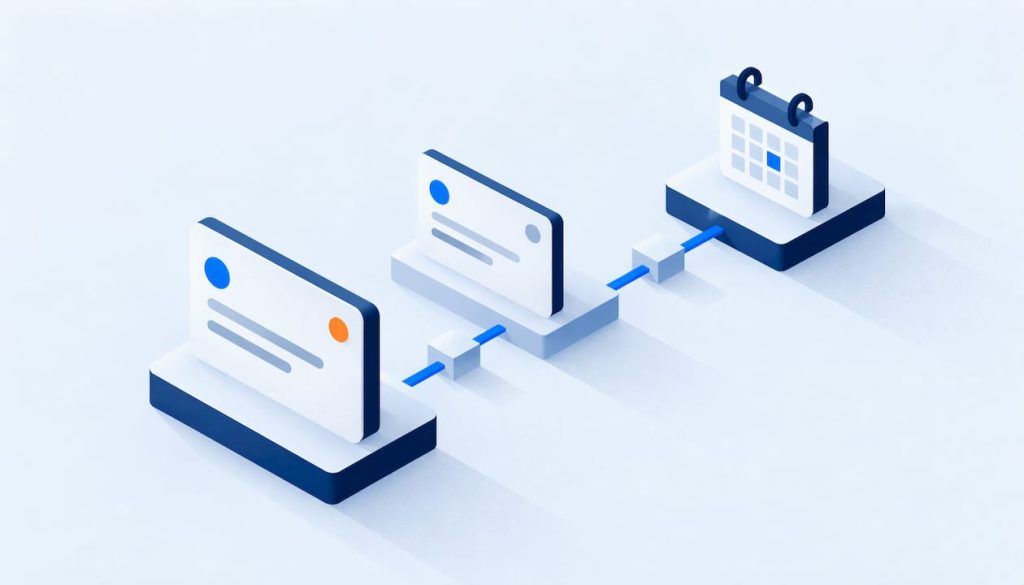
That makes the call the first notification point. Nothing can be confirmed until the job is booked, and the job cannot be booked until someone answers. So the order of the chain is:
- The call is answered.
- The caller is qualified: what the job is, where, how urgent.
- The job is booked into a slot that is actually free.
- The confirmation goes out.
- Reminders and updates follow.
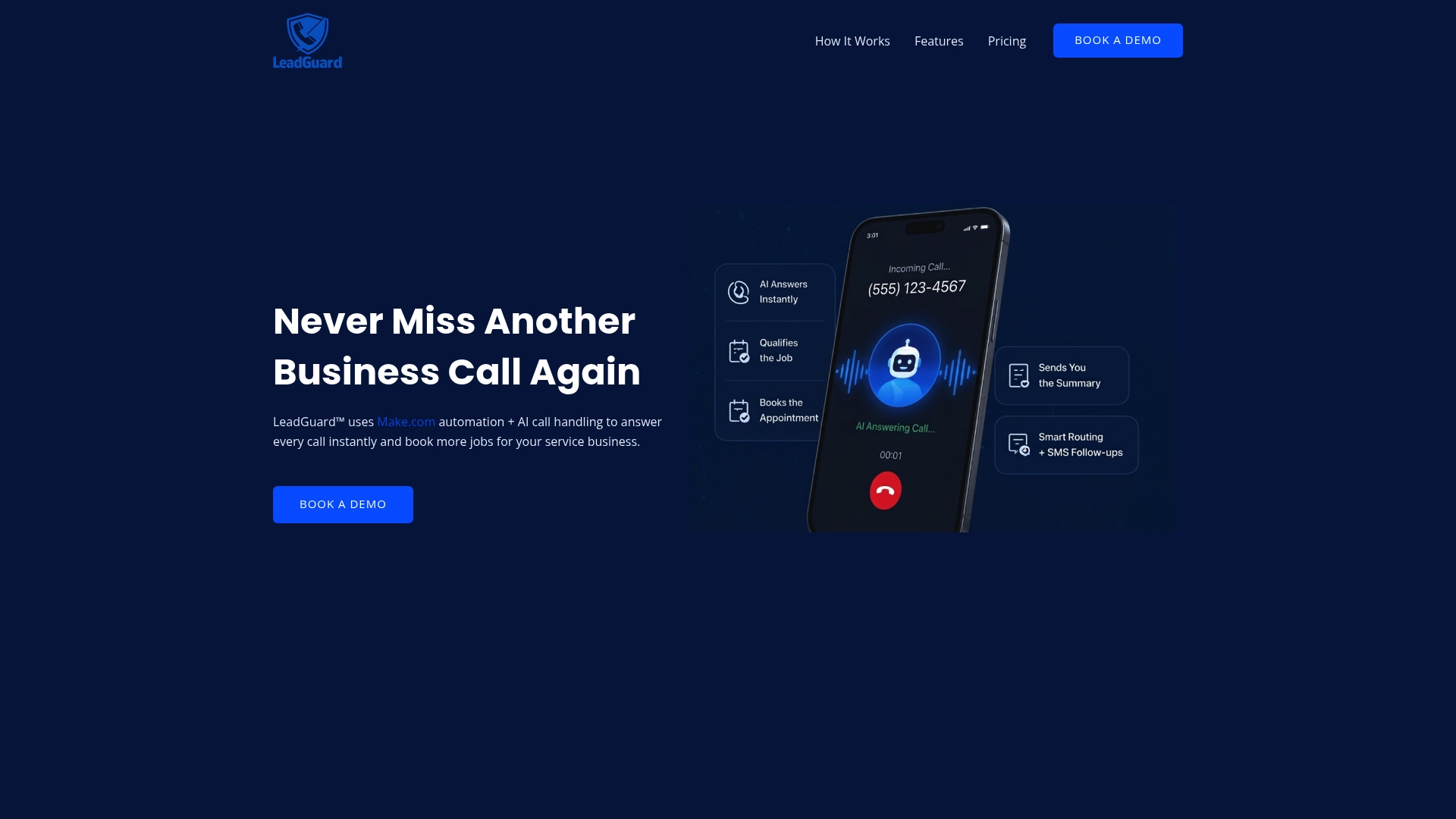
LeadGuard covers that chain. It answers every incoming call immediately, with no voicemail, around the clock. It qualifies the lead and books the appointment based on real-time availability. Then it sends instant notifications by SMS and email. Because one system does the answering, the booking, and the messaging, the confirmation matches what was actually booked.
The notifications worth sending
You do not need a dozen message types. Start with these.
| Notification | Who gets it | When it goes out | What it does |
|---|---|---|---|
| Booking confirmation | Customer | Right after the booking | Confirms date, time window, address, and service |
| New job alert | Owner, dispatcher, or technician | Right after the booking | Puts the job in front of the people who run it |
| Reminder | Customer | Before the visit, once or twice | Cuts forgotten appointments and lets the customer reply |
| Reschedule or cancellation notice | Customer and team | When the booking changes | Keeps both sides on the same schedule |
| Follow-up | Customer | After a missed call or finished job | Keeps the conversation open |
The first two should be instant. A customer who hangs up and hears nothing starts to wonder if the booking was real. A confirmation in the next minute answers that.
Confirmations
A confirmation should say what was booked, when, and where. Include the business name so the customer can save the number. If you give a time window, say so plainly: “between 1 and 3 p.m.” is better than a vague afternoon.
Reminders
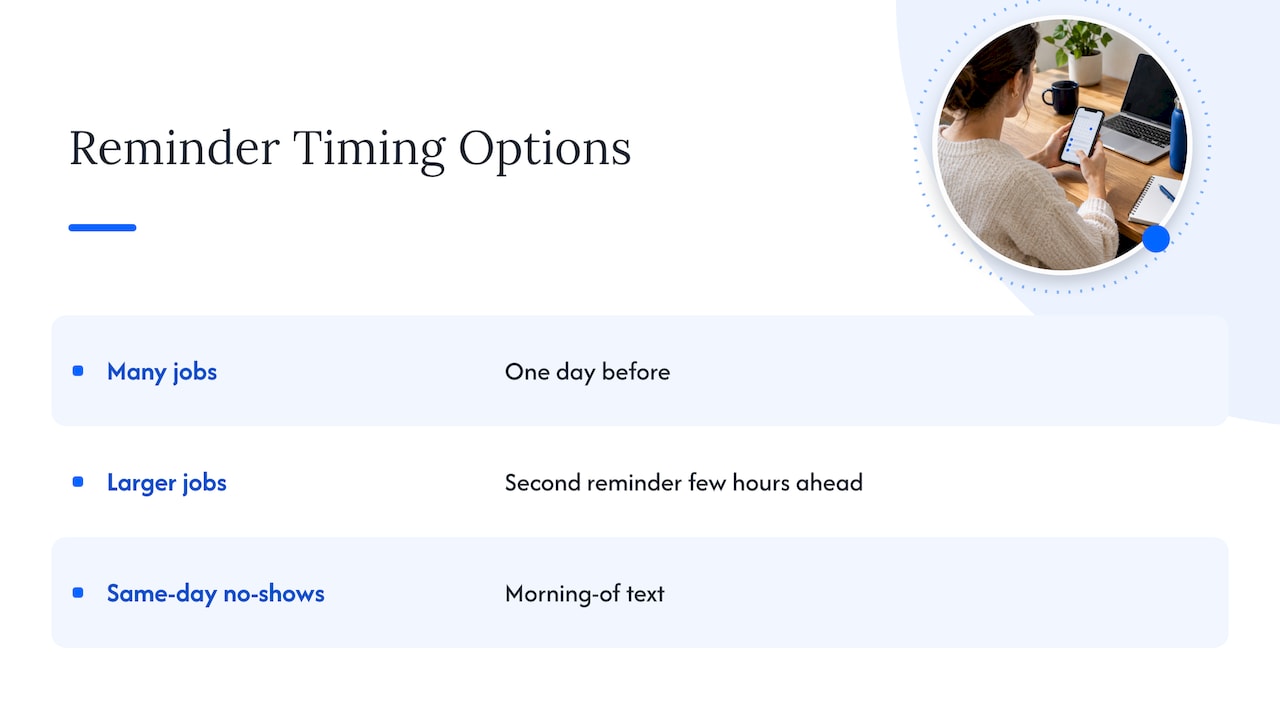
One reminder the day before works for many jobs. Larger jobs, like a bathroom remodel estimate, may deserve a second one a few hours ahead. Match the timing to how your customers behave. If your no-shows cluster on same-day appointments, add a morning-of text.
Changes and cancellations
This is the one most businesses forget. When a technician runs late or a job moves, the customer should hear it from you before they start watching the driveway. A short text with the new time and a way to reply fixes most of the frustration.
Team alerts
Your crew needs the same facts the customer got: address, job type, time, and any notes from the call. Sending them by SMS or email the moment the job is booked means no one has to relay it from memory.
What to write in the message
Good notifications are short and easy to answer. Here is a simple pattern.
Confirmation: “Hi Dana, your drain cleaning with Smith Plumbing is booked for Thursday, March 12, between 1 and 3 p.m. at 48 Oak Street. Reply C to confirm or R to reschedule.”
Reminder: “Reminder: Smith Plumbing is scheduled to visit tomorrow between 1 and 3 p.m. Reply C to confirm or R to reschedule.”
Change notice: “Smith Plumbing update: your visit has moved to Friday, March 13, between 9 and 11 a.m. Reply R if that does not work.”
A few habits make these work.
- Use the customer’s first name and the actual job.
- Put the date and time in the first line.
- Give one clear action, not three.
- Say who is texting. A message from an unknown number gets ignored.
- Keep it to what the customer needs. Do not add a promotion.
That last point is a legal one, covered next.
US consent rules to know
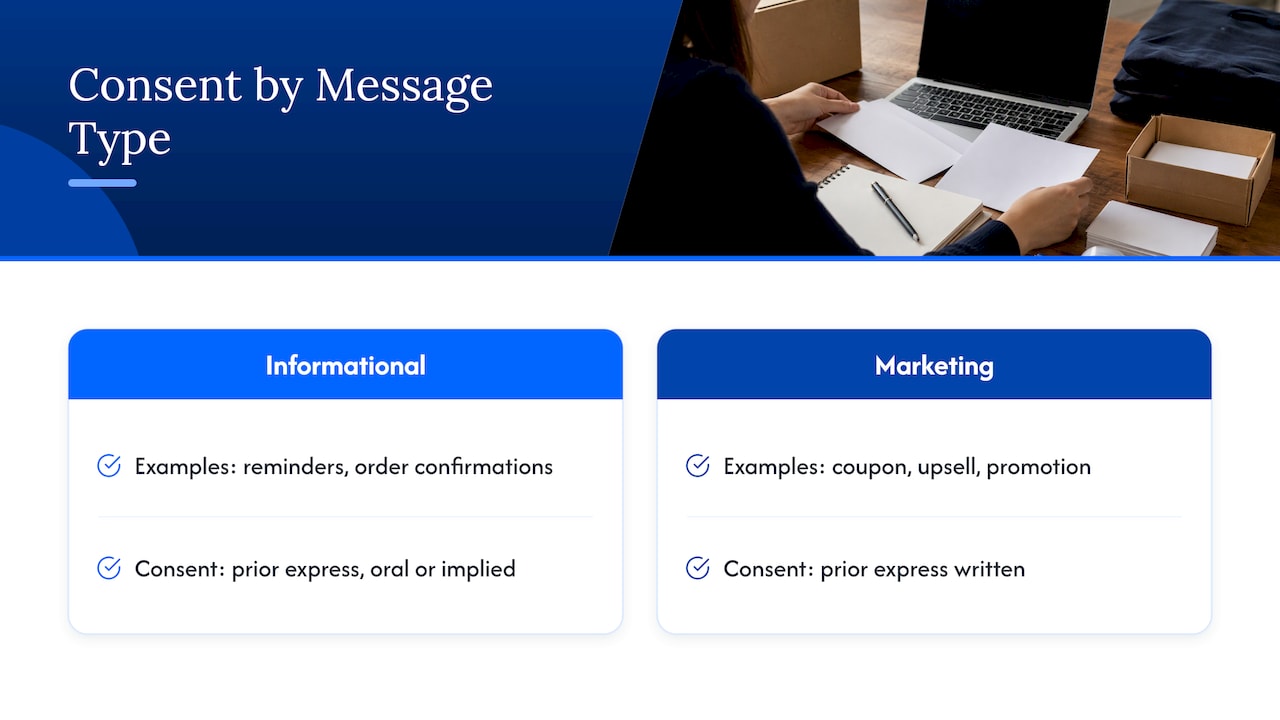
Text reminders in the US fall under the Telephone Consumer Protection Act, or TCPA. This is a federal law about automated calls and texts. The short version: what you put in the message decides what kind of consent you need.
For purely informational messages, such as appointment reminders and order confirmations with no promotional content, the standard is prior express consent, which can be oral or implied. A customer who gives you their number to book a job has generally given you a reason to text about that job. But once you add a coupon, an upsell, or any promotional line, the message becomes marketing. Marketing texts need prior express written consent.
The practical rule for your templates is simple: keep booking messages about the booking.
Opt-outs are the second point. Always honor a STOP reply. There is also a change coming. The FCC extended the effective date of its broader consent-revocation rule to January 31, 2027. Under that rule, a STOP reply to an automated reminder could also revoke consent for future unrelated automated messages from the same sender. Law firms advise building one central, auditable way to record consent, not separate stop lists per channel.
For you, that means one place that logs who opted out, shared by every message you send. If you run several message types, keep them tied to one customer record. If you have questions about your specific situation, a lawyer who handles TCPA matters is the right person to ask.
How to set up auto booking notifications
Here is the routine, step by step, with the common ways it goes wrong.
Step 1: List your booking events
Write down every moment a customer or crew member should hear from you. New booking, reminder, reschedule, cancellation, missed call. This list is your notification map.
Where it goes wrong: people list only the confirmation and skip changes. Changes are where customers get most upset.
Step 2: Make sure every call becomes a booking attempt
Notifications only fire on bookings. If calls go to voicemail, you lose the booking and the notification with it. LeadGuard answers every call, around the clock, so every caller gets a chance to book. It qualifies the lead first, so the job you book is one you actually want.
Step 3: Book against real availability
A confirmation for a slot that is already full is worse than no confirmation. Notifications should be built on live calendar data. LeadGuard books appointments based on real-time availability, so the time in the text is a time you can honor.
Step 4: Set timing and channels
Decide what goes by SMS and what goes by email. Texts suit quick confirmations and reminders. Email suits longer details, like what to prepare before a visit. LeadGuard sends both SMS and email notifications.
Where it goes wrong: sending too many. Two reminders is usually plenty. More starts to feel like nagging.
Step 5: Route alerts to the right person
A new job alert that lands in a shared inbox no one checks does nothing. Send it to whoever dispatches. LeadGuard includes smart routing, so calls and jobs can reach the right person or team. For general contractors who need call interception and routing, this matters most: the call goes where it should, and the alert follows.
Step 6: Connect your other tools
If you use other software for scheduling or job tracking, you want the booking to show up there too. LeadGuard integrates appointment scheduling automation using Make.com, which connects apps without custom code.
Step 7: Write the templates and test the flow
Use the patterns above. Run a few sample bookings from start to finish and read each message as a customer would. Check the date format, the address, and the reply options.
Step 8: Review after a month
Look at the numbers in the next section and adjust timing or wording.
Follow-ups after a missed call
Not every caller books on the first call. Some hang up, get a better offer, or need to check with a spouse. An SMS follow-up keeps the door open. LeadGuard includes SMS follow-ups as part of its approach, so a caller who did not finish booking can still hear from you with a short, helpful text.
Keep the same consent rules in mind. A follow-up about the job they called about is informational. A discount offer is marketing.
How to tell if it is working
You do not need a complex dashboard. Track four things for a month before and a month after you turn notifications on.
- No-show and late-cancel rate: the share of booked jobs where nobody was home or the customer canceled at the door.
- Confirmation rate: how many customers reply to confirm or reschedule.
- Booked jobs from calls: how many calls ended in a booking, including after hours.
- Office time on follow-up: how many hours your staff spend on confirmation calls and reschedule texts.
Compare the two months. If no-shows drop and your office spends less time on the phone, the system is paying for itself. If confirmations are low, shorten the message or move the reminder time.
A note on timing: week-to-week swings are normal in service work because of weather and seasons. Compare like months where you can.
What it costs
LeadGuard is a monthly subscription, billed per business or location. Starter is $97 per month, Professional is $147 per month, and Enterprise is $197 per month. Compare that to a single missed job. For many contractors, one extra booked job a month changes the math.
Our view on auto booking notifications
We think notifications are the last step of a good call, not a separate tool.
Most service businesses lose jobs before any text is sent. The phone rings, no one picks up, and the caller moves on. So we built LeadGuard to start there: answer every call right away, with no voicemail, at any hour.
From that call, the rest follows. We qualify the lead, book the appointment against real-time availability, and send instant notifications by SMS and email. Smart routing sends the call or job to the right person. SMS follow-ups keep the conversation going.
When one system does all of it, the confirmation always matches the booking. Your team gets the same facts the customer got. You spend your day on the work, not the phone.
That is what we want for every contractor and home service owner we work with.
Jim
Try it with your own calls
If you want the whole chain in one place, LeadGuard answers the call, books the job, and sends the confirmation. Plans start at $97 per month for Starter, with Professional at $147 per month and Enterprise at $197 per month. You can see the plans and start on the LeadGuard site.
It is built for contractors, home service providers, and growing service companies that do not want to lose another lead to voicemail.
FAQ
What is an auto booking notification?
It is a text or email that a system sends automatically when something happens to a booking. Examples are a confirmation after the call, a reminder before the visit, and a notice when the time changes. No one has to write or send it by hand.
How many reminders should I send?
One or two is a good starting point. A reminder the day before works for most jobs, and a second one a few hours ahead can help for larger jobs. Watch your no-show rate and adjust.
Can I include a coupon in a reminder text?
It is best not to. Purely informational reminders need prior express consent, which can be oral or implied. Adding a promotion turns the message into marketing, and that needs prior express written consent.
What happens when a customer replies STOP?
Stop texting them. The FCC has also pushed a broader revocation rule to January 31, 2027. Under it, a STOP to a reminder could end other automated messages too. Keep one shared opt-out record, and ask a TCPA lawyer about your own setup.
Do notifications work for after-hours calls?
Yes, if the call is answered. LeadGuard answers calls 24/7, books the appointment, and sends the confirmation at once, so a caller at night still gets a booking and a text.